Last Updated: October 23, 2026
Quick Summary
Coaching business software implementation succeeds when you map your workflow before the login screen appears, moving through seven stages from needs assessment to a thirty-day review. Most solo coaches can finish the phased checklist in three to five weeks of part-time effort, while a practice with associates should budget six to eight weeks.
- Score three candidates against a weighted framework, two is too few to expose trade-offs, five too many to evaluate honestly.
- Clean and deduplicate client data in a spreadsheet before importing, then verify the record count matches your source file.
- Configure one package end to end and confirm it works before cloning the pattern for your other offerings.
- Onboard clients in small batches of ten so you can respond personally to each one.
- After thirty days, track admin time, missed sessions, invoice payment time, and client response time against your baseline.
Table of Contents
- Why Coaching Business Software Implementation Fails (and How to Get It Right)
- What Your Coaching Business Software Actually Needs to Do
- Your Coaching Software Implementation Checklist
- Stage 1: Assess needs (week one)
- Stage 2: Shortlist and compare (week one to two)
- Stage 3: Migrate client data (week two)
- Stage 4: Configure scheduling and billing (week two to three)
- Stage 5: Onboard clients (week three)
- Stage 6: Test and troubleshoot (week three to four)
- Stage 7: Measure and optimize (week five onward)
- Client Management Software for Coaches: Getting Client Records Right
- Building a Coaching Client Onboarding Process That Scales
- Coaching Business Automation: What to Automate and What to Keep Human
- Migrating Data, Protecting Client Information, and Connecting Your Tools
- Frequently Asked Questions
Why Coaching Business Software Implementation Fails (and How to Get It Right)
Most coaching business software implementation projects fail because nobody mapped the workflow before the login screen appeared, not because the tool is wrong.
What Your Coaching Business Software Actually Needs to Do
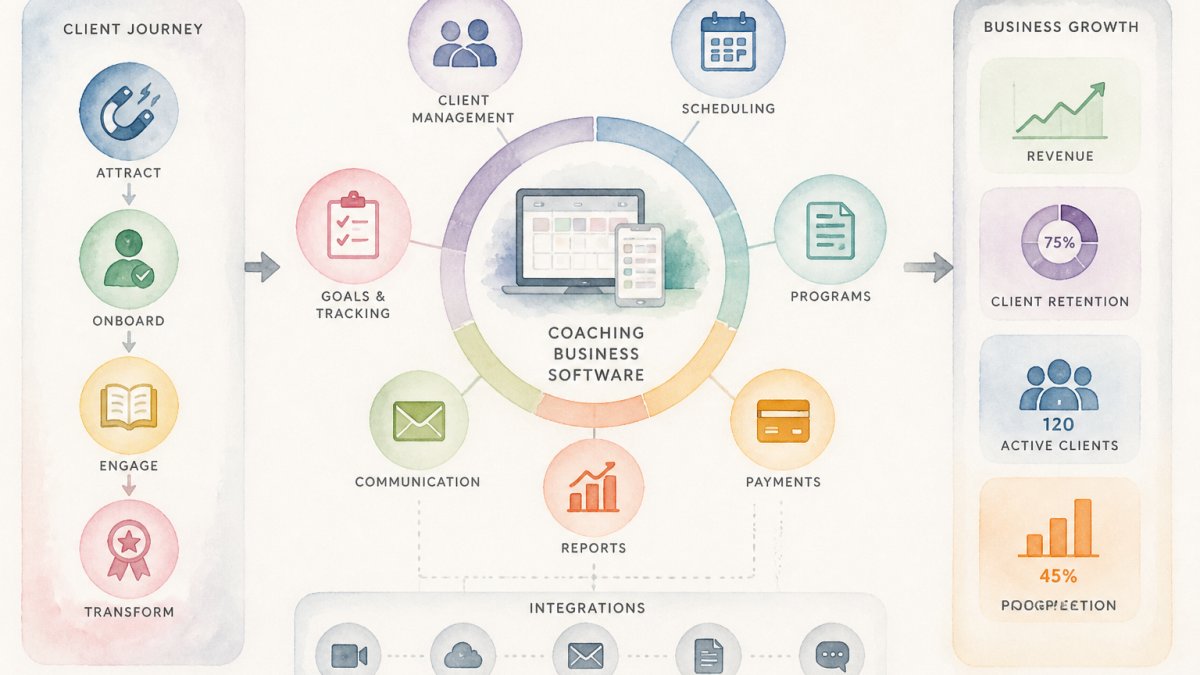
Coaching business software is a connected system for managing client records, sessions, payments, and communication in one place.
Not every practice needs every module. A solo coach may only need scheduling, notes, and invoicing, while a growing practice needs permissions, shared calendars, and reporting. The trap is buying for the practice you hope to have in three years.
Core capabilities to look for
- Client records that hold contact details, session history, notes, and documents in one profile
- Scheduling with time-zone handling, buffers, and self-service booking links
- Payments and invoicing tied to sessions or packages, with automatic reminders
A simple feature comparison framework
Score each candidate one to five against your own priorities, then weight the categories:
| Category | Weight | What to score |
|---|---|---|
| Client management | High | Records, notes, documents, permissions |
| Scheduling | High | Booking links, time zones, reminders |
| Billing | Medium | Invoicing, payment processing, packages |
| Communication | Medium | Messaging, email, notification controls |
| Automation | Medium | Reminders, follow-ups, workflow triggers |
| Reporting | Low to medium | Retention, revenue, program outcomes |
| Integration | High | Calendar, payment, and video tool connections |
Multiply each score by its weight and total the column. The highest total isn't automatically the winner, but it forces you to argue with evidence rather than vibes.
Your Coaching Software Implementation Checklist
A coaching software implementation checklist is a phased plan that moves your practice from assessment to live operation without downtime. The seven stages below each have a clear finish line.
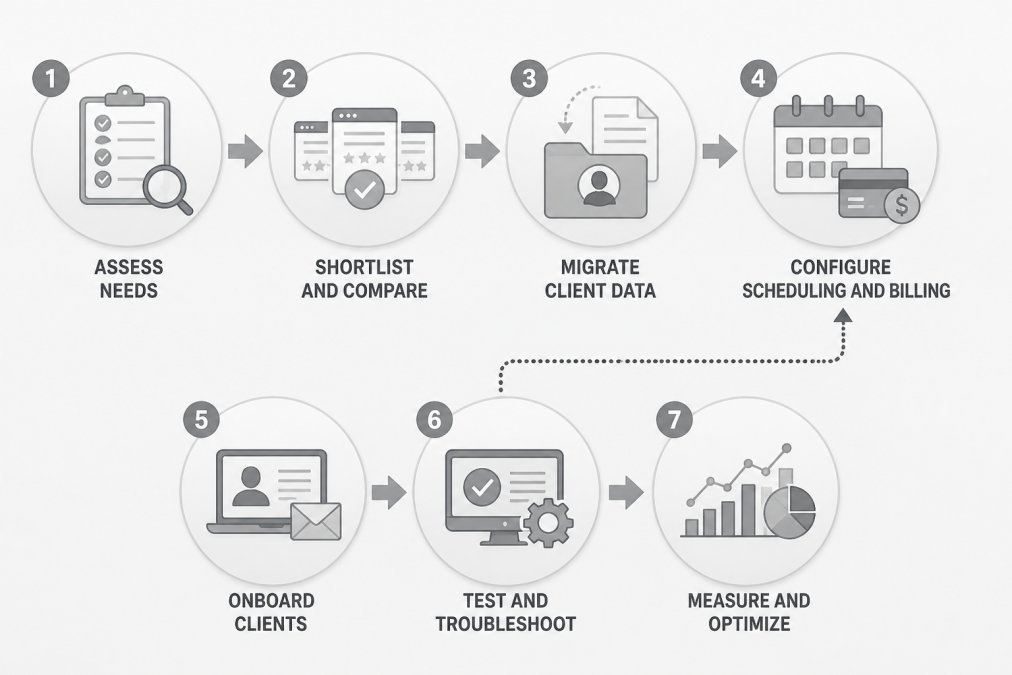
Stage 1: Assess needs (week one)
List every task you do across all tools and note where time leaks. Be specific: "send session reminders" is a task, "manage clients" is not. Group tasks into five buckets, records, scheduling, billing, communication, and reporting, and mark which cost the most time or cause the most mistakes.
Finish line: a one-page task inventory you could hand to a colleague.
Stage 2: Shortlist and compare (week one to two)
Score three candidates against the framework above, two is too few to expose trade-offs, five too many to evaluate honestly. Book a demo with each and ask the same five questions: how does data export work, what happens to my data if I cancel, can I control which team members see which records, which calendar and payment tools do you connect to natively, and what does support look like in the first thirty days. Write the answers side by side, demo amnesia is real.
Finish line: a scored shortlist with written answers to the five questions.
Stage 3: Migrate client data (week two)
Export from your current system, clean it in a spreadsheet, then import. Never import dirty data: merge duplicates, standardise phone formats, fill in missing time zones, and archive anything inactive before a single record touches the new system.
Finish line: a clean import file and a verified record count that matches your source.
Stage 4: Configure scheduling and billing (week two to three)
Set availability, buffers, time zones, packages, and payment rules. Configure one package end to end, a single session type, price, and reminder sequence, confirm it behaves correctly, then clone that pattern for your other offerings. Configuring everything at once makes it impossible to tell which setting broke what.
Finish line: one fully working package you could sell today.
Stage 5: Onboard clients (week three)
Send a short, friendly note explaining what changes and what stays the same. Clients care about three things: how to book, how to pay, and whether their history is safe. Answer those in plain language and link to the new booking page.
Finish line: every active client has received the note and at least one has booked through the new system.
Stage 6: Test and troubleshoot (week three to four)
Run fake bookings, invoices, and a fake client record end to end using a colleague's email. Test what breaks in real life: a booking across a daylight-saving boundary, a card that declines on the first attempt, a reschedule inside your cancellation window, and a double-booked slot.
Finish line: a completed test log with no unresolved failures and a written rollback plan.
Stage 7: Measure and optimize (week five onward)
After thirty days, review what's working and retire the workarounds. Track four numbers: admin time per week, missed or double-booked sessions, invoice payment time, and client response time. Compare them to your stage-one baseline. If a number got worse, that's your next configuration project, not a reason to abandon the system.
Finish line: a thirty-day review with four measured numbers and one improvement action.
Client Management Software for Coaches: Getting Client Records Right
Client management software for coaches decides whether the whole system holds together. Get the records right and everything downstream, scheduling, invoicing, progress notes, inherits that accuracy.
Define what a complete client record contains: contact details, time zone, engagement start date, program or package, session history, notes, and shared documents.
A common mistake is dumping every historical note into the new system.
Building a Coaching Client Onboarding Process That Scales
A coaching client onboarding process is the sequence a new client moves through from signed agreement to first session. Done well, it's mostly automated and feels personal.
Map the steps first, then decide which ones the software handles.
The human parts matter. A short personal message before the first session, written by you rather than a template, does more for retention than any automation.
- Automated: welcome email, intake form, booking link, payment reminder, session confirmation
- Human: personal pre-session note, first-session framing, check-ins after milestone sessions
- Automated again: follow-up after the final session, feedback request, re-engagement nudge
Coaching Business Automation: What to Automate and What to Keep Human
Coaching business automation means letting software handle repetitive administration so your time goes to clients.
Automate anything identical every time: appointment reminders, invoice generation, payment receipts, intake forms, and follow-up sequences.
Keep human anything that carries emotional weight: a client's first session, a difficult conversation, a milestone celebration, and any message where the wording depends on context.
Migrating Data, Protecting Client Information, and Connecting Your Tools
Data migration is the stage coaches underestimate most. Export your client list, open it in a spreadsheet, and spend an hour on cleanup: merge duplicates, standardise phone formats, fill in missing time zones, and archive anything inactive. If a record hasn't had activity in twelve months, it belongs in an archive file, not your live system.
A migration sequence that avoids duplicate records
Run the import in this order to avoid the most common mess:
- Export everything from your current tools into a single spreadsheet, one row per client.
- Deduplicate by email address first, then by name and phone. Most duplicates come from clients who booked once under a personal email and once under a work email.
- Standardise phone formats, time zones, and date formats before import, fixing them after import means editing records one at a time.
- Map columns to the new system's fields and check the mapping against a sample of ten records before running the full import.
- Import in batches of fifty to a hundred records so a failed batch is easy to identify and re-run.
- Verify the count, the number of imported records should match your cleaned source file exactly.
Protecting client information: what to check before you commit
Treat client notes as sensitive by default. Before you commit to a provider, get clear answers to these questions in writing:
- Encryption: is data encrypted in transit and at rest?
- Access controls: can you restrict which team members see which records, and can you revoke access when someone leaves?
- Backups: how often are backups taken, and how quickly could the provider restore your data if something went wrong?
If any answer is vague, keep looking. Official guidance on handling personal data, such as the UK Information Commissioner's Office guidance on data protection, is a useful sanity check on what good practice looks like. The principle is straightforward: you are responsible for your clients' data even when a software company stores it.
Permissions: deciding who sees what
If you work with associates, contractors, or an assistant, map roles to access before you import anyone. A common pattern is three tiers: full access for you, client-record access without billing for associates, and calendar-only access for an assistant who books sessions but shouldn't read notes. Set these up before onboarding staff, retrofitting permissions later confuses everyone.
Connecting your tools: map before you migrate
Integrations deserve their own mapping exercise. List every tool your practice depends on, then confirm the new system connects to each or has a workable replacement. Calendar, payment processing, video calls, and email matter most.
ReaderReach helps authors find readers for their books by connecting them to book clubs, podcasts, radio interviews, reading circles, libraries and local book stores with reading circles, through genre-matched outreach campaigns that build lasting reader engagement and secure reviews, author visits and event opportunities.
Frequently Asked Questions
What software does a coaching business need?
Most coaching practices need four core functions: client management for records and notes, scheduling and calendar management, billing and payment processing, and messaging for client communication. Beyond those, look for progress tracking and goal setting so sessions connect to outcomes. Coaching business software that bundles these reduces the number of tools you log into daily. Start with the four essentials, then add automation and reporting once the basics are stable. A platform that covers client records, booking, invoicing, and messaging in one place is usually the simplest starting point.
How do I choose software for my coaching practice?
Write down your five most time-consuming admin tasks, then score each candidate platform against them. Check ease of use, whether it supports your coaching program format (online, in person, or hybrid), how it handles client records and scheduling, and what integrations it offers for payments and calendars. Ask about data export before you commit. Pricing plans vary, so compare total cost against hours saved per week. A shortlist of three options tested with a free trial beats a long comparison list.
How do I move client information into coaching software?
Export your existing client records from spreadsheets, email, or your current tools into a clean CSV file first. Standardize names, contact details, and session history before importing. Run a test import with a small batch, check for duplicates, then migrate the full set. Keep a backup of the original data and confirm you can export from the new platform. This step belongs early in your coaching software implementation checklist so scheduling and billing start with accurate records.
What tasks can coaching business automation handle?
Automation works best for repeatable admin: appointment reminders, intake forms, invoice generation, payment receipts, follow-up messages after sessions, and progress check-ins between meetings. These tasks follow a predictable pattern, so rules can trigger them without your involvement. Keep coaching conversations, goal-setting discussions, and anything sensitive human. The goal of coaching business automation is to free up hours for client work, not to remove the personal contact that makes coaching valuable.
How can I tell whether coaching software is working for my business?
Track a few measures before and after implementation: hours spent on admin per week, time to onboard a new client, no-show rates, and how quickly invoices get paid. Review these after 30 and 90 days. Also watch client experience signals, such as whether clients actually open and use their portal. If admin time drops and onboarding gets faster without hurting client communication, the software is earning its place. Adjust configuration where the numbers stall.
How do I connect scheduling, payments, and client management tools?
Check integrations before you buy. Most platforms connect to calendar services and payment processors, so bookings create events and payments update client records automatically. Map your workflow first: what happens when a client books, pays, and attends a session. Then confirm each handoff is covered by an integration or an automation rule. Where a native integration is missing, a connector tool can bridge the gap, but fewer moving parts is safer for a small coaching practice.
